
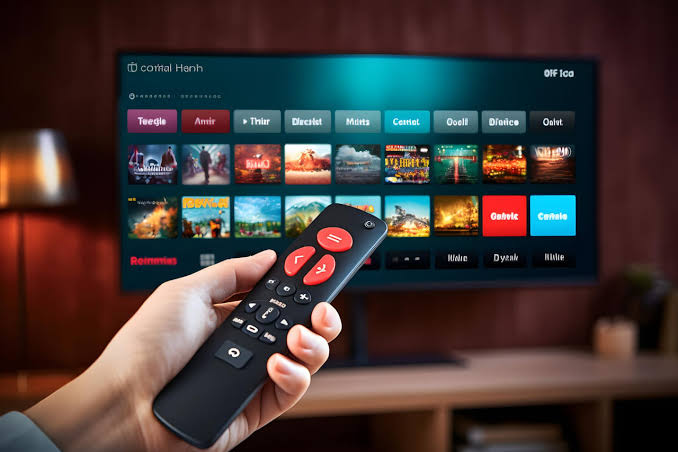
Streaming Services: Remote Setup, Smart TV Apps & Buffering Fix (Complete Guide)
Streaming has become the main way most people watch movies, shows, sports, and live content. But getting everything working smoothly isn’t always simple. Between streaming devices, smart TV apps, account sign-ins, and a home internet connection that has to keep up with it all, one small issue can leave you staring at a loading screen. The good news is that professional streaming services can set up your devices and apps remotely, so your accounts are signed in, apps are installed, and everything is ready to watch. And if something is buffering or won’t connect, a proper fix finds the actual cause instead of just restarting the device. This guide explains the types of streaming devices, how basic setup works, and how to fix common streaming problems the right way.
1. Know Your Streaming Setup
Before setup or troubleshooting, it helps to know what kind of streaming setup you have, since each one connects and behaves a little differently.
- Smart TVs – Have streaming apps built directly into the television. Convenient, but built-in processors and memory can be limited, which sometimes causes slow apps over time.
- Streaming Sticks – Small plug-in devices that connect to an HDMI port on your TV. Affordable, portable, and easy to set up.
- Streaming Boxes – Larger set-top devices that typically offer stronger performance, more storage, and extra connection options like a wired network port.
- Gaming Consoles – Many consoles double as streaming devices, supporting most popular streaming apps alongside gaming.
- Mobile Devices and Casting – Phones, tablets, and computers can send video to a TV through screen mirroring or casting features on the same Wi-Fi network.
2. What Remote Streaming Setup Includes
Remote setup means a technician guides or completes the setup over an online connection, without needing to visit your home. A complete remote setup typically covers:
- Connecting your streaming device or smart TV to your Wi-Fi or wired network.
- Installing the streaming apps you actually use on your device or smart TV.
- Signing in to your accounts securely so you don’t have to type long passwords with a TV remote.
- Organizing the home screen so your favorite apps are easy to find.
- Testing playback to confirm video and sound work correctly before the session ends.
3. Basic Streaming Setup Steps
If you prefer to set things up yourself, the process is simple when taken one step at a time.
Prepare Your Device
- Connect the streaming device to your TV’s HDMI port, or turn on your smart TV.
- Plug the device into power using the included adapter rather than the TV’s USB port, if possible, for steady power.
- Insert batteries into the remote and select the correct HDMI input on your TV.
Connect to the Internet
- On the device’s setup screen, choose your Wi-Fi network from the list.
- Enter your Wi-Fi password carefully using the on-screen keyboard.
- Wait for the device to confirm a successful connection and run any initial updates.
- For the most stable connection, use a wired network cable if your device or TV supports it.
Install Apps and Sign In
- Open the app store on your device or smart TV.
- Search for the streaming apps you want and select Install.
- Open each app and choose the sign-in option.
- Use the on-screen code or QR code method to sign in from your phone, which is faster and more secure than typing a password with a remote.
4. Why Streaming Buffers or Won’t Connect
When a stream keeps buffering, many people simply restart the device and hope for the best. That might help briefly, but it rarely solves the real problem. Proper troubleshooting looks for the actual cause. Common culprits include:
- Weak Wi-Fi signal: The device may be too far from the router or blocked by walls and appliances.
- Slow or overloaded internet speed: Too many devices using the connection at once can leave too little bandwidth for video.
- Network congestion or interference: Crowded Wi-Fi channels or other electronics can disrupt the signal.
- Outdated device or app software: Old firmware or app versions can cause crashes, freezing, and connection errors.
- Full device storage or memory: Too many installed apps and cached files can slow a device down.
- Router or DNS issues: Sometimes the problem is in the router settings rather than the streaming device itself.
- Account or subscription issues: Sign-in errors, expired payments, or too many active screens can block playback.
5. How to Fix Buffering and Connection Problems
Test Your Internet Connection
- Run an internet speed test on a device connected to the same network.
- Compare the result to what your streaming apps recommend for standard or high-definition video.
- Test at different times of day to check whether slowdowns happen mostly during busy evening hours.
Improve Your Wi-Fi Signal
- Move the router closer to the streaming device, or place it in a more open, central location.
- Switch from the 2.4GHz band to the 5GHz band if available, for faster speeds at shorter range.
- Connect the device directly with a network cable whenever possible.
- Consider a mesh system or range extender if your home has dead zones.
Update and Clean Up the Device
- Check for system updates in your device or TV settings and install any that are available.
- Update the streaming apps from the app store.
- Clear the cache of apps that load slowly or freeze.
- Uninstall apps you no longer use to free up storage and memory.
Check Your Account
- Make sure your subscription is active and payment details are up to date.
- Sign out and sign back in if an app keeps showing errors.
- Check whether the maximum number of devices or screens on your plan is already in use.
6. When Remote Support Is the Better Option
Trying fixes one by one can be time-consuming, especially when the cause isn’t obvious. Remote support can save time and frustration when:
- You’ve restarted everything, but buffering or connection errors keep returning.
- You have multiple streaming devices and smart TVs that all need to be set up.
- Signing in to accounts with a TV remote feels slow or confusing.
- You’re not sure whether the problem is your device, your Wi-Fi, your router, or your account.
A remote technician can check your network, device settings, and apps step by step to identify the real cause and fix it, rather than just treating the symptom.
7. Tips for Better Everyday Streaming
- Restart your router every few weeks to keep your network running smoothly.
- Keep devices and apps updated to prevent bugs and compatibility issues.
- Avoid heavy downloads or large uploads on other devices while streaming.
- Use strong, unique passwords for each streaming account and enable extra sign-in protection when available.
- Place streaming devices where they have good airflow, since overheating can cause freezing and shutdowns.
Final Thoughts
Streaming should be effortless: you press play and enjoy. With the right setup, your devices connect reliably, your apps are installed, and your accounts are signed in and ready to go. When problems like buffering or connection errors do appear, finding the real cause matters far more than a quick restart. Whether you set things up yourself or get help from a remote streaming service, understanding how your devices, network, and apps work together will keep your entertainment running smoothly for years to come.
Leave a Reply