
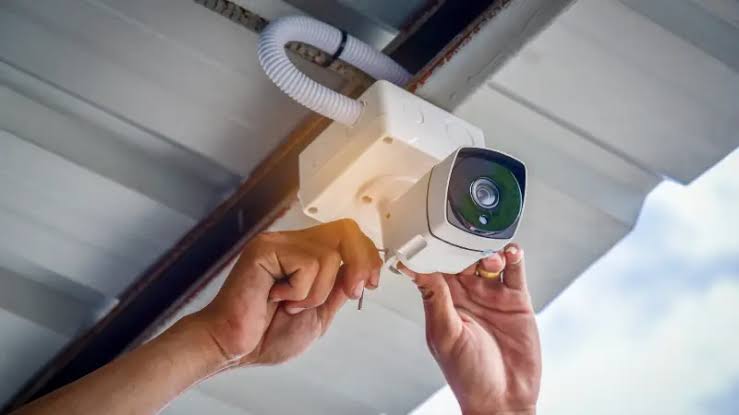
Security Camera Offline? How to Fix It (Complete Troubleshooting Guide)
Few things are more frustrating than opening your security app and seeing “Offline” next to your camera feed. Whether it’s one camera or your entire system, an offline security camera leaves your home or business without the protection you rely on. The good news is that most offline issues are caused by a small number of common problems, and most can be fixed without calling a technician. This guide walks you through the different types of security cameras and a simple, step-by-step process to bring an offline camera back online.
1. Know Your Security Camera Type
Before troubleshooting, it helps to know what kind of camera system you have, since the fix can depend on how the camera connects and stores footage.
- Wi-Fi (Wireless) Cameras – Connect directly to your home or business Wi-Fi network. Convenient to install but sensitive to network issues, router distance, and signal interference.
- Wired (PoE) Cameras – Use a Power over Ethernet cable for both power and data. More stable and less likely to drop offline, but issues are usually related to cabling or the network switch.
- NVR/DVR-Based Systems – Cameras connect to a central recorder (Network Video Recorder or Digital Video Recorder), which then connects to the internet. If the recorder goes offline, all connected cameras can appear offline too.
- Battery-Powered Cameras – Fully wireless and portable, relying on Wi-Fi and an internal battery. Prone to going offline due to low battery or power-saving modes.
- Cloud-Connected Cameras – Store footage remotely and depend heavily on a stable internet connection to stay “online” in the app, even if the camera itself is working locally.
2. Check the Basics First
Before diving into deeper troubleshooting, rule out the simple causes:
- Confirm the camera has power — check the cable connection, power adapter, or battery level.
- Check that your internet and router are working by testing another device on the same network.
- Restart the camera by unplugging it (or removing the battery) for 30 seconds, then reconnecting it.
- Restart your router and, if applicable, your NVR/DVR recorder as well.
3. Fix Wi-Fi and Network Connection Issues
Most offline cameras are caused by a weak or interrupted network connection. Work through these steps:
Check Signal Strength
- Move closer to the router temporarily to see if the camera reconnects.
- Check the signal strength indicator in your camera’s app, if available.
- Remove obstacles like thick walls, metal doors, or large appliances between the camera and router.
Reconnect the Camera to Wi-Fi
- Open the camera’s companion app and go to Device Settings or Network Settings.
- Select Reconnect to Wi-Fi or Change Network.
- Re-enter your Wi-Fi password carefully, especially if you recently changed it.
- Wait for the app to confirm a successful connection before closing it.
Check Router Settings
- Make sure the router isn’t blocking the camera through a firewall or MAC address filter.
- Confirm the router hasn’t run out of available device connections (common on older routers).
- If you recently changed your Wi-Fi name or password, every camera will need to be reconnected manually.
4. Fix Wired (PoE) and NVR/DVR Connection Issues
- Check that the Ethernet cable is firmly connected at both the camera and the switch or recorder.
- Inspect the cable for damage, and try swapping it with a known working cable.
- Confirm the PoE switch or injector is powered on and functioning correctly.
- Log into the NVR/DVR system and check its network status page to see if it has lost its own internet connection.
- Update the NVR/DVR firmware if a pending update is available, as outdated firmware can cause connection drops.
5. Update Firmware and App Software
Outdated firmware or app versions are a common hidden cause of cameras going offline unexpectedly.
- Open the camera’s app and check for a firmware update under Device Settings.
- Update the mobile app itself from your device’s app store if a newer version is available.
- Restart the camera after any update completes to apply changes properly.
6. Re-Add or Reset the Camera
If the camera still won’t reconnect, a reset may be necessary:
- Remove the camera from the app or account it’s currently linked to.
- Press and hold the physical reset button on the camera (usually 5–10 seconds) until you hear a tone or see a light change.
- Set up the camera again from scratch, following the standard pairing process in the app.
- Assign the camera a strong, unique Wi-Fi password-protected connection to avoid future drops.
7. When to Contact Support
If you’ve tried the steps above and the camera is still offline, it may indicate a hardware fault. Consider reaching out to support if:
- The camera shows no lights or signs of power at all.
- The camera reconnects briefly, then drops offline repeatedly.
- Other cameras on the same network work fine, isolating the issue to one specific unit.
Final Thoughts
An offline security camera is almost always fixable with a few basic checks: confirming power, testing the network connection, updating firmware, and reconnecting the device properly. By understanding your camera type and working through these steps in order, you can usually restore your security feed within minutes. To prevent future outages, keep your router firmware updated, place cameras within strong signal range, and check battery-powered devices regularly to make sure your system stays online when you need it most.
Leave a Reply