
Router Offline? How to Fix It (Complete Troubleshooting Guide)
A router going offline can bring your entire home or office to a standstill, cutting off Wi-Fi, smart devices, and internet-connected work all at once. It can be alarming to see no internet connection with no clear reason why, but the truth is that most router outages come down to a handful of common causes. This guide walks you through the different types of routers and a simple, step-by-step process to get your router back online quickly.
1. Know Your Router Type
Before troubleshooting, it helps to know what kind of router setup you have, since the fix can depend on how your network is structured.
- Standalone Routers – A single device that connects to your modem and broadcasts Wi-Fi. Common in smaller homes and simple setups.
- Modem-Router Combo Units – Combine the modem and router into one device, provided by many internet service providers. Convenient, but a single point of failure for both internet and Wi-Fi.
- Mesh Router Systems – Use multiple connected nodes placed around a home or office to extend Wi-Fi coverage. If one node drops, connected devices nearby can lose signal.
- Dual-Band or Tri-Band Routers – Broadcast on multiple frequencies (2.4GHz and 5GHz, sometimes a second 5GHz band) to balance speed and range. Issues can sometimes affect only one band rather than the whole network.
- Business/Enterprise Routers – Handle heavier traffic loads with more advanced configuration options, often managed through a separate admin console or IT system.
2. Check the Basics First
Before diving into deeper troubleshooting, rule out the simple causes:
- Confirm the router has power — check that the cable is firmly plugged into both the router and the outlet.
- Check the router’s status lights; a red, blinking, or unlit internet light usually signals a connection problem.
- Restart the router by unplugging it for about 30 seconds, then plugging it back in.
- If you have a separate modem, restart that first, wait a minute, then restart the router.
3. Fix Common Connection Issues
Check the Modem and ISP Connection
- Confirm the cable connecting the modem to the wall (coaxial, fiber, or DSL line) is secure.
- Check if your internet service provider is reporting an outage in your area through their website or app.
- Test the connection with a device plugged directly into the modem, bypassing the router, to isolate the issue.
Reboot in the Correct Order
- Turn off both the modem and router.
- Wait 60 seconds to let the equipment fully power down.
- Turn the modem on first and wait until its lights stabilize.
- Then turn on the router and wait for it to fully reconnect.
Check for Overheating or Placement Issues
- Make sure the router has open space around it and isn’t enclosed in a cabinet.
- Move the router away from other electronics that can cause interference, such as microwaves or cordless phones.
- Allow the router to cool down for a few minutes if it feels unusually warm, then restart it.
4. Fix Wi-Fi-Specific Problems
Sometimes the router has internet access, but devices still can’t connect to Wi-Fi. Try these steps:
- Forget the network on your device and reconnect using the correct Wi-Fi password.
- Check if the issue affects only one frequency band (2.4GHz or 5GHz) and connect to the other as a temporary fix.
- Reduce the number of connected devices temporarily to see if overload is causing the drop.
- Change the Wi-Fi channel in the router settings if there’s heavy interference from nearby networks.
5. Update Firmware and Settings
Outdated firmware is a common hidden cause of routers dropping offline or slowing down over time.
- Log into the router’s admin panel through a web browser using its IP address.
- Check for available firmware updates under the system or maintenance settings.
- Install any pending updates and restart the router once the update completes.
- Review settings for anything recently changed, such as parental controls or bandwidth limits, that may be blocking access.
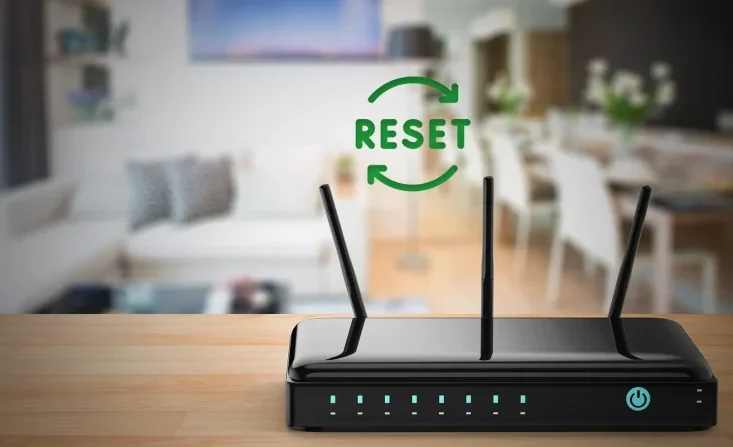
6. Factory Reset as a Last Resort
If the router still won’t come back online, a factory reset may be necessary:
- Locate the small reset button, usually on the back or bottom of the router.
- Press and hold it for 10–15 seconds using a pin or paperclip until the lights flash.
- Wait for the router to fully restart, which can take a few minutes.
- Set up the router again from scratch, including your Wi-Fi name and password, using the manufacturer’s setup app or admin page.
7. When to Contact Your Internet Provider
If you’ve worked through all the steps above and the router is still offline, the issue may be outside your control. Consider contacting your internet service provider if:
- The modem shows no internet light even after restarting.
- Your provider confirms an outage in your area.
- The router repeatedly disconnects even after a factory reset.
Final Thoughts
A router going offline is almost always fixable with a methodical approach: checking power and cables, restarting equipment in the right order, updating firmware, and resetting as a last resort. By understanding your router type and working through these steps in order, you can usually restore your connection within minutes. To reduce future outages, keep your router’s firmware updated, place it in an open, cool location, and restart it periodically to keep your network running smoothly.
Leave a Reply