
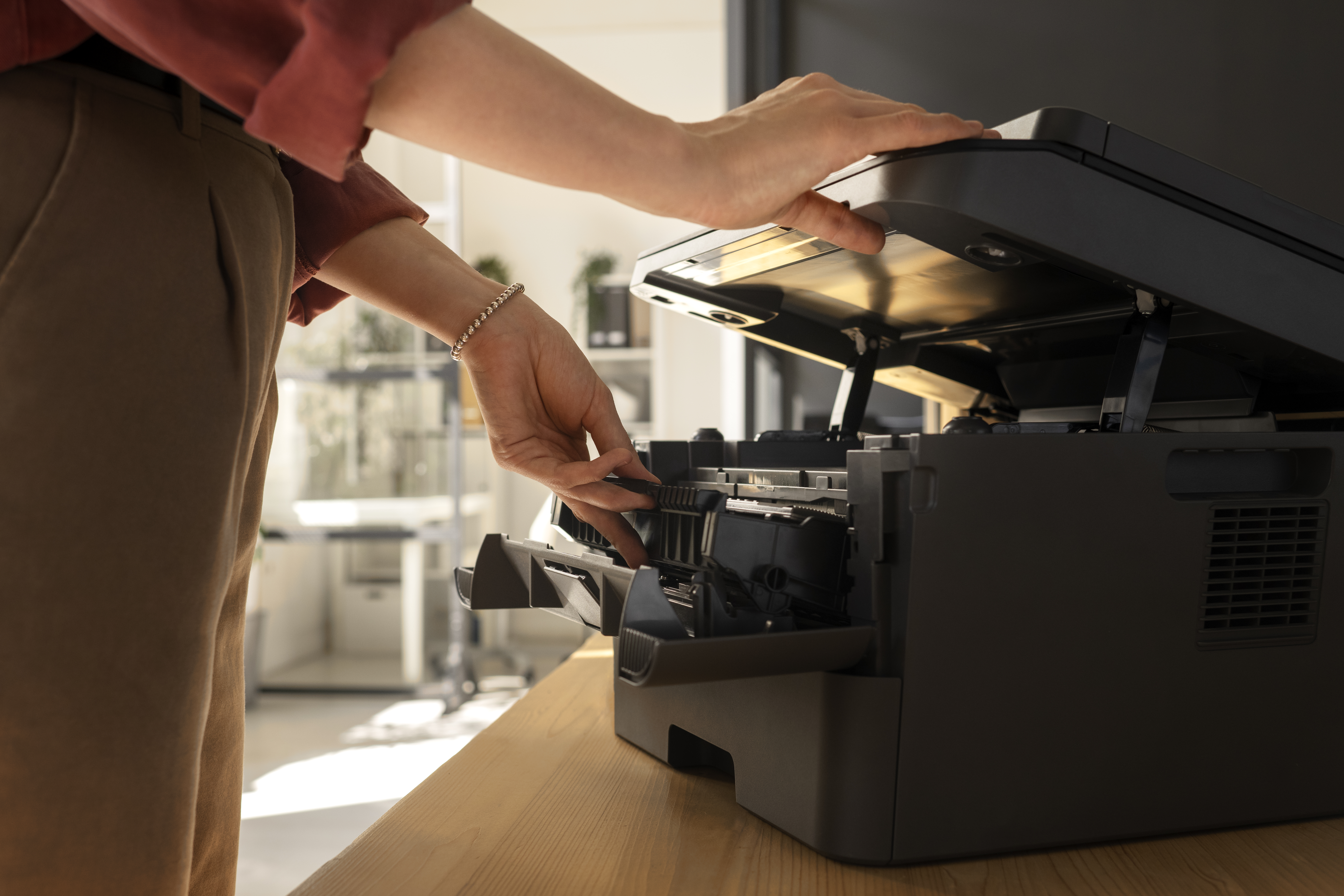
Printer Not Working? How to Fix It (Complete Troubleshooting Guide)
Few things disrupt a busy day like a printer that suddenly refuses to work. Whether it won’t turn on, won’t print, or keeps throwing an error, a broken printer can bring important tasks to a halt. The good news is that most printer problems come down to a small set of common causes, and the majority can be fixed without professional help. This guide walks you through the different types of printers and a simple, step-by-step process to get your printer working again.
1. Know Your Printer Type
Before troubleshooting, it helps to know what kind of printer you have, since the fix can depend on how the printer works.
- Inkjet Printers – Use liquid ink cartridges. Common issues include clogged print heads, empty cartridges, or streaky prints.
- Laser Printers – Use toner powder instead of liquid ink. Common issues include toner smudging, paper jams, or drum unit errors.
- All-in-One (Multifunction) Printers – Combine printing, scanning, and copying. Problems can stem from any one of these functions or from the shared connection.
- Thermal Printers – Use heat instead of ink, common in receipt and label printing. Faded prints are often a sign of a dirty or worn print head.
- Dot Matrix Printers – Use pins and ribbon to print. Issues are often related to ribbon wear or pin alignment.
2. Check the Basics First
Before diving into deeper troubleshooting, rule out the simple causes:
- Confirm the printer is powered on and the cable is securely connected to an outlet.
- Check for any error messages or blinking lights on the printer’s display or control panel.
- Make sure paper is loaded correctly and isn’t jammed or crumpled inside the tray.
- Restart the printer by turning it off, waiting 30 seconds, and turning it back on.
3. Fix “Printer Not Responding” or Connection Issues
Check the Connection Type
- For USB printers, unplug and reconnect the cable, or try a different USB port.
- For Wi-Fi printers, confirm the printer is still connected to your network in its settings menu.
- For Bluetooth printers, make sure Bluetooth is enabled on both the printer and your device, and that they’re still paired.
Confirm the Printer Is Set as Default
- Open your computer’s printer settings (Devices and Printers on Windows, or Printers & Scanners on Mac).
- Right-click or select your printer and choose “Set as Default Printer.”
- Try printing a test page to confirm it’s now responding correctly.
Clear the Print Queue
- Open the print queue from your printer settings.
- Cancel any stuck or pending print jobs.
- Restart the print spooler service (Windows) or restart the printer, then try printing again.
4. Fix Print Quality Problems
If the printer turns on and responds but the output looks wrong, try these steps:
- Streaky or faded prints: Run the built-in print head cleaning cycle from the printer’s settings or software.
- Blank pages: Check ink or toner levels and replace any cartridges that are empty or low.
- Misaligned text or images: Run the print head alignment tool available in most printer utility software.
- Smudged pages: Clean the rollers and interior gently following the printer’s maintenance instructions, and let toner-based prints fully cool before handling.
5. Fix Paper Jams and Feeding Issues
- Turn off the printer before attempting to clear a jam to avoid damage.
- Gently pull jammed paper in the direction it normally feeds, avoiding tearing.
- Check for small torn pieces left behind inside the printer and remove them carefully.
- Fan the paper stack before loading it, and make sure it isn’t overfilled or crumpled.
- Adjust the paper guides so paper sits snugly without being too tight or too loose.
6. Update Drivers and Software
Outdated or corrupted drivers are a common hidden cause of printers that stop working after previously running fine.
- Uninstall the current printer driver from your computer’s device settings.
- Download the latest driver from the printer manufacturer’s support website.
- Reinstall the driver and restart your computer before attempting to print again.
- Check for firmware updates on the printer itself through its settings menu, if available.
7. Reset the Printer
If the printer still isn’t working, a reset may help resolve deeper software glitches:
- Turn off the printer and unplug it from power for a full 60 seconds.
- Plug it back in and turn it on, allowing it to fully reinitialize.
- If available, use the printer’s factory reset option from its settings menu as a last resort.
- Reconnect the printer to your computer or network and reconfigure basic settings.
8. When to Contact Support
If you’ve worked through all the steps above and the printer still isn’t working, it may point to a hardware issue. Consider reaching out to support if:
- The printer won’t power on at all, even with a confirmed working outlet.
- Print quality issues persist even after cleaning and cartridge replacement.
- The printer displays a persistent error code that doesn’t clear after restarting.
Final Thoughts
A printer that stops working is almost always fixable with a methodical approach: checking power and connections, clearing the print queue, addressing print quality issues, and updating drivers when needed. By understanding your printer type and working through these steps in order, you can usually get it printing again within minutes. To avoid future issues, keep drivers updated, perform regular cleaning, and check ink or toner levels routinely so your printer stays reliable when you need it most.
Leave a Reply